
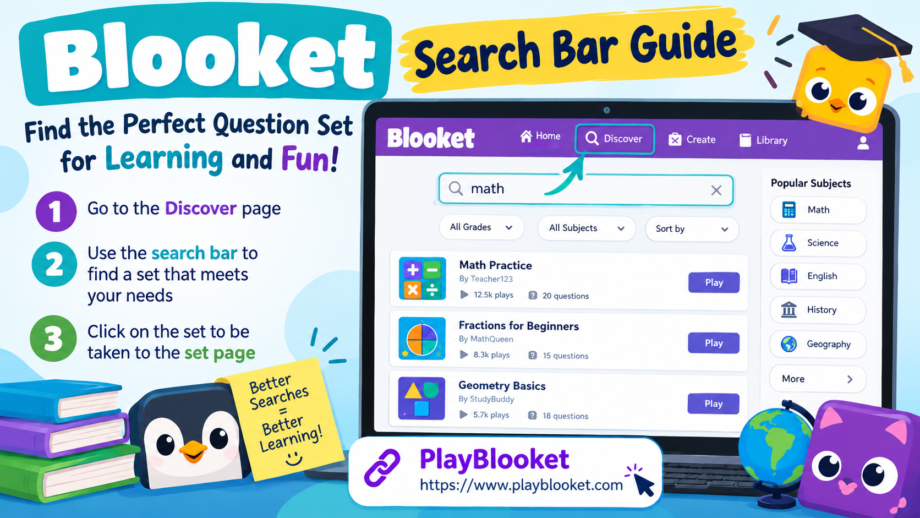
Finding the right educational activity can make a big difference in how students learn, practice new concepts, and stay interested in a lesson. Blooket makes this process easier by allowing users to explore question sets created around different subjects, skills, and learning goals. Whether someone wants to review mathematics, improve vocabulary, explore science, or prepare for an upcoming test, the Discover page provides a convenient starting point.
One of the most useful features on this page is the search bar, which helps users locate question sets without scrolling endlessly through unrelated results. Instead of browsing every available option, learners can enter a topic, subject, or keyword that matches their needs. Teachers can use the same feature to find classroom activities, while students can discover additional practice materials for independent study.
However, finding a suitable set involves more than typing a random word and opening the first result. Search terms, grade levels, question quality, and the purpose of an activity all influence the final choice. Understanding how to use the search bar effectively can save time and make the entire experience more productive.
This guide explains how to navigate the Discover page, search for relevant question sets, evaluate the available results, and open a set for further exploration. It also includes practical examples and useful suggestions for teachers, students, and parents who want to make better use of Blooket.
1. Understanding the Blooket Discover Page
The Discover page is a useful place to begin when looking for an existing question set. Rather than creating every quiz from scratch, users can explore publicly available sets created by other members of the platform. These resources cover a wide range of educational subjects and general-interest topics.
For teachers, Discover can simplify lesson preparation. A teacher planning a revision session might need questions about fractions, historical events, grammar rules, or scientific vocabulary. Searching for an existing set can provide a starting point without requiring every question to be written manually.
Students can also benefit from exploring the available materials. Someone who has recently studied multiplication, for example, may want extra practice before a classroom assessment. Opening Discover and using the search bar makes it easier to find activities related to that specific skill.
The page is particularly helpful when a user already knows the subject they want to study. Instead of exploring unrelated categories, they can enter a relevant phrase and examine the results.
Before starting, open Blooket and navigate to the Discover section. Once the page loads, look for the search field used to find question sets. The layout may change as the platform develops, but the general process remains straightforward.
A little preparation can improve the experience. Think about the lesson topic, the learner’s current level, and the reason for using the set. These details make it easier to choose appropriate search terms.
2. Use the Search Bar to Find a Suitable Set
The main purpose of the search bar is to help users find question sets that match a particular topic or learning objective. It provides a direct alternative to browsing the entire collection manually.
Begin by identifying the subject you want to explore. If you need mathematics practice, you might search for fractions, multiplication, decimals, or algebra. For language lessons, useful terms could include spelling, sentence structure, vocabulary, or reading comprehension.
After deciding on a topic, enter it into the search bar and review the available results. The wording you choose can influence which sets appear, so it is worth experimenting with a few related phrases if the first search does not produce useful options.
For example, a broad search such as science may return sets covering several different areas. A more specific phrase, such as the water cycle, can help narrow the focus toward the lesson you actually want to study.
The same principle applies to other subjects. Someone learning English grammar might obtain more relevant results by searching for irregular verbs rather than entering a general term such as English.
The goal is not necessarily to find the largest collection of results. Instead, the aim is to locate material that matches the learner’s needs and provides useful practice.
When using the search bar, keep your first query simple. Start with the main topic, examine the results, and then make the wording more specific if necessary. This approach makes the process easier to manage and helps users avoid unnecessary searches.
3. Choose Search Terms That Match Your Learning Goals
The quality of your search often depends on how clearly you describe the topic. A single broad word may be useful for general exploration, but a more precise phrase can help you identify a suitable question set faster.
Consider these examples:
- Mathematics: Search for long division, multiplication tables, fractions, or geometry.
- Science: Try photosynthesis, the solar system, human anatomy, or states of matter.
- English: Look for vocabulary practice, punctuation rules, synonyms, or verb tenses.
- History: Enter a historical period, an important event, or the name of a civilization.
- Geography: Search for world capitals, continents, rivers, or map skills.
These phrases describe particular subjects instead of entire academic disciplines. As a result, they give you a more focused starting point when exploring the available material.
You can also combine a topic with a grade level or difficulty description. For example, a student who needs elementary mathematics practice could try a phrase such as grade four fractions. A high school learner might search for introductory chemistry or advanced algebra.
Adding these details to the search bar can make it easier to identify resources that suit a particular classroom or study session. Nevertheless, search wording does not guarantee that every result will match the requested level. Always inspect the set before deciding to use it.
Another useful technique is trying alternative terms. A set creator may use the word vocabulary instead of word meanings, or multiplication instead of times tables. If your first query produces limited results, changing one or two words may reveal other relevant options.
4. Review the Search Results Carefully
Once you submit your query, take a moment to examine the results before opening a set. Several resources may cover the same subject, but their content, difficulty, and presentation can differ considerably.
Start with the title. Does it describe the topic clearly? A set called Introduction to Fractions may be more appropriate for a beginner than one focused on complex fraction operations.
Next, review any available description or other information shown with the result. Depending on the interface, you may be able to see details such as the number of questions, the number of plays, or a cover image. These details can help you compare options, although popularity alone does not establish educational quality.
If a set includes many questions, consider whether you actually need a large activity. A short review session may work better with a smaller collection, while a longer revision lesson could benefit from a more extensive set.
Pay attention to the language used in the questions as well. Younger students generally need clear wording and age-appropriate vocabulary. More advanced learners may benefit from challenging questions that require explanation, interpretation, or problem-solving.
The search bar helps you discover possibilities, but it cannot replace careful evaluation. A few minutes spent reviewing the results can prevent you from choosing an activity that is unrelated to the lesson or too difficult for the intended audience.
Whenever possible, compare two or three promising sets before making your final selection.
5. Click a Set to Open Its Set Page
After identifying a promising result, click on the set to open its dedicated page. This is the next important step because it allows you to move from searching to examining the actual resource.
The set page provides access to the available actions for that question set. Depending on the options offered, you may be able to review the material, play a solo game, host a live game, or save the set to your Favorites.
Before beginning a game, check whether the questions match your objective. A teacher preparing a classroom activity should confirm that the material supports the lesson. A student studying independently should look for questions that reinforce concepts they have already learned or want to practice.
Opening the set also gives you an opportunity to consider whether it suits the available time. If you have only a few minutes before a lesson ends, a short activity may be more practical than a lengthy review session.
The search bar is therefore only the beginning of the process. Its purpose is to help you discover relevant options, while the set page helps you decide how to use the selected material.
If the first set does not meet your expectations, return to Discover and try another result. You do not need to settle for the first option simply because it appeared near the top of the list.
6. Use Filters to Narrow Your Search
Searching by keyword is a useful starting point, but additional filters can make the process more efficient when they are available.
Blooket’s official guidance explains that users can narrow their search using the available search filters. Depending on the options displayed, these filters may help you refine results according to characteristics such as question count or other set details.
Imagine that you need a quick classroom warm-up. You might search for multiplication and then narrow the available options to find a manageable activity. If you are preparing a longer revision lesson, you may prefer a set with more questions.
Filters are particularly useful when a topic produces many results. Instead of opening every result individually, you can reduce the list and concentrate on the most promising options.
Remember that filters should support your decision rather than make it automatically. A set that meets your preferred question count may still contain unsuitable questions, so reviewing its content remains important.
If the results seem too limited after applying a filter, remove one restriction and search again. Sometimes a slightly broader selection reveals a resource that would otherwise be overlooked.
Combining thoughtful keywords with appropriate filters can turn a lengthy browsing session into a more organized process.
7. Explore Blooket Curriculum Resources
Another option worth considering is Blooket Curriculum, which organizes educational resources by subject and grade. This can be helpful when you need material aligned with a particular level rather than a general topic.
For example, a teacher planning a mathematics unit may want several activities covering related skills. Browsing organized curriculum collections can provide a more structured starting point than searching for each topic individually.
Students can also benefit from this approach when reviewing material from a particular grade. Instead of entering different phrases repeatedly into the search bar, they can explore the relevant subject and grade categories when those options are available.
Curriculum collections may be especially useful when the learner has a clear academic goal. Someone preparing for a unit assessment, for example, might need several related sets rather than one general quiz.
It is still important to review the questions before using a resource. The grade label and subject category provide useful context, but they do not automatically guarantee that every question will match a particular syllabus or classroom requirement.
For the best experience, combine organized curriculum browsing with targeted searches. Each method serves a slightly different purpose, and together they can make educational resources easier to discover.
8. Common Search Mistakes to Avoid
Even though finding a question set is relatively simple, a few common mistakes can make the process less effective.
Using overly broad keywords: Searching for a general term may return material covering many unrelated areas. Use a more specific phrase when you know exactly what you need.
Ignoring the intended grade level: A set may cover the right subject but introduce concepts that are too advanced or too basic. Consider the learner’s current understanding before choosing an activity.
Opening the first result without reviewing it: Search placement does not necessarily indicate that a resource is the best match. Compare the title, description, and available question details.
Repeating the same unsuccessful search: If your first query produces irrelevant results, try a synonym, a narrower phrase, or a related topic instead of submitting the identical wording repeatedly.
Choosing popularity over relevance: A widely played set may be entertaining, but it might not support your specific learning objective. Prioritize useful content over popularity.
Forgetting to inspect the set page: Discovering a resource is not the same as confirming that it is suitable. Review the set before deciding whether to play, host, or save it.
Avoiding these mistakes can help students and teachers make better decisions while spending less time browsing.
9. Practical Examples for Different Users
Different users approach educational games with different goals. Understanding these situations can help you develop a search strategy that works for your own needs.
Example 1: A Student Preparing for a Test
Suppose a student has an upcoming mathematics test covering decimals. The student opens Discover and enters decimals into the search bar.
After reviewing the results, the student finds a set that focuses on decimal addition and subtraction. The title and available details appear relevant, so the student opens the set page and checks the questions.
If the activity matches the topics covered in class, the student can use an available solo-play option for additional practice. Afterward, they can review difficult concepts and return to the material that needs more attention.
Example 2: A Teacher Planning a Science Lesson
A teacher preparing a lesson on photosynthesis wants a short review activity. Instead of writing every question from the beginning, the teacher searches for photosynthesis and examines the available sets.
Several results appear, but not all of them match the intended age group. The teacher compares the descriptions, opens the most promising option, and checks whether the questions support the lesson objective.
If the resource is appropriate, it can become part of a classroom review or another supported activity.
Example 3: A Parent Supporting Home Learning
A parent wants to help a child practice English vocabulary after school. The parent searches for vocabulary practice and examines the available options.
Rather than selecting the first result, the parent looks for clear language and questions suitable for the child’s current level. Once a suitable set is found, they open its page and choose an available way to use it.
This makes learning more interactive while giving the parent a practical way to identify additional study material.
Example 4: A Teacher Reviewing Several Topics
A teacher may need activities covering grammar, spelling, and reading comprehension during the same week. Searching for each subject separately allows the teacher to compare resources and select different sets for different lessons.
By using focused search terms and keeping track of promising results, the teacher can develop a useful collection of activities without rebuilding every quiz from scratch.
10. Tips for Getting Better Results
A consistent approach can make searching more productive over time.
First, identify the learning objective before opening Discover. Knowing whether you want revision, assessment preparation, vocabulary practice, or general exploration helps you select appropriate terms.
Second, begin with a concise query. A clear subject or skill is often enough to produce a useful starting list.
Third, refine the wording when necessary. If the results are too broad, add a specific concept or grade description. If they are too narrow, try a related phrase.
Fourth, use the available filters to reduce irrelevant options. This is especially useful when many sets cover similar topics.
Fifth, evaluate each promising resource before using it. Look at its title, description, question details, and suitability for the intended audience.
Finally, consider saving useful sets to Favorites when that feature is available. This can make it easier to return to resources you have already reviewed instead of repeating the entire search process.
The search bar works best as part of a broader process: identify the goal, search for relevant content, compare the results, inspect a promising set, and decide how to use it.
Frequently Asked Questions
What is the search bar used for in Blooket?
The search bar helps users locate question sets on the Discover page. By entering relevant keywords, subjects, or skills, users can find educational activities that match their interests or learning objectives.
Where can I find the search bar?
Open Blooket and navigate to the Discover page. Look for the field used to search for question sets. The exact appearance may vary as the website’s interface changes.
What should I type into the search bar?
Enter a subject or skill that describes the material you want. Examples include fractions, photosynthesis, vocabulary, world geography, and multiplication tables. More specific phrases can help narrow the results.
Why are my search results not relevant?
Your keywords may be too broad, too specific, or different from the wording used by the set creator. Try alternative terms, include a related skill, or adjust the available filters.
Can students use Discover to find practice activities?
Students can explore available question sets and use suitable resources for independent practice. The options available on an individual set page determine how the activity can be played or used.
Should I select the first result?
Not necessarily. Compare several options when possible, and check the available information to determine whether a set matches your topic, difficulty level, and learning goal.
Can teachers use existing sets instead of creating their own?
Yes. Teachers can explore publicly available question sets and use suitable resources for supported activities. They can also create their own sets when existing material does not meet their requirements.
What should I do after finding a suitable set?
Click the set to open its page. Review the material, then choose an available action, such as solo play, live hosting, or adding the set to Favorites.
Conclusion
Finding a useful educational activity does not have to involve endless browsing or unnecessary preparation. Blooket’s Discover page provides a convenient way to explore existing question sets, while targeted keywords and search filters help users narrow their choices.
The most effective approach is to begin with a clear learning objective, choose relevant search terms, compare the available results, and open a promising set for closer inspection. This method helps students find additional practice and gives teachers another option when preparing classroom activities.
The search bar is an important part of this process because it connects users with resources that may match their educational needs. However, the best results come from combining efficient searching with careful evaluation.
Whether you are studying for a test, preparing a lesson, or exploring a new subject, taking a few moments to choose the right set can make your learning experience more focused, organized, and enjoyable.
