For teachers and students, getting into an educational platform should not feel complicated. Gimkit is designed to make classroom review more interactive, but before you can access many of its account features, you first need to get through the sign-in process. Whether you are returning to an existing account, joining a class, or preparing to host a game, knowing where to sign in can save time.
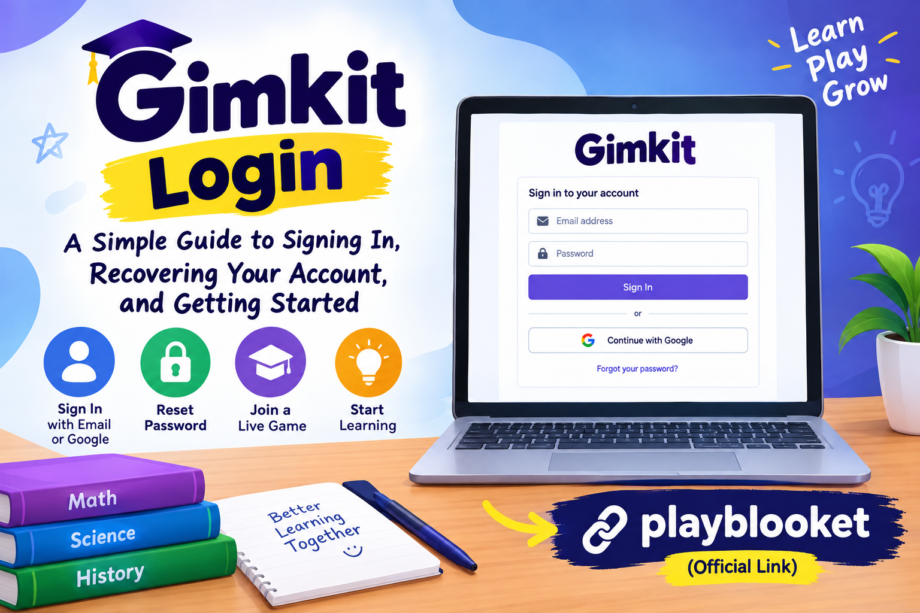
The gimkit login process is straightforward when you already know which sign-in method you used when creating your account. You can generally continue with your email credentials or use Google if that is how your account was created. If you have forgotten your password, Gimkit also provides an official recovery process.
This guide explains the process in simple steps, discusses common problems, and covers what you can do after successfully accessing your account.
What Is Gimkit?
Gimkit is an educational game platform designed around quizzes and classroom review. Teachers can create question sets, called kits, and use them in live games or other learning activities. Students can participate in games and assignments, while teachers can manage their content through their accounts.
According to Gimkit’s official help center, there are two main account types: Educator and Student. Creating an account is free, while Educator accounts can optionally be upgraded to Gimkit Pro. Gimkit also states that students do not always need an account to participate in live games or assignments, although accounts are useful for features such as classes, XP, and cosmetics.
That distinction is important because not every student who wants to play a Gimkit game necessarily needs to go through an account sign-in process.
How to Complete Gimkit Login
If you already have a Gimkit account, the first step is to visit the official Gimkit website and locate the login page.
The basic process is:
- Open the official Gimkit website.
- Go to the login page.
- Enter the email address associated with your account.
- Enter your password.
- Select the option to sign in.
- Wait for your dashboard to load.
If you originally created your account using Google, you may instead see an option to continue with Google. In that situation, use the Google account associated with your Gimkit profile.
It is worth paying attention to the email address you enter. A surprisingly common reason for failed sign-ins is using a different email from the one connected to the account.
The official Gimkit account documentation confirms that users can create accounts using Google or email, so remembering how you originally registered can make the process much easier.
Using Google to Access Your Account
Some people prefer signing in with Google because they do not have to remember another separate password. If your Gimkit account was created through Google, look for the Google sign-in option on the account page.
The general process is:
- Open the Gimkit sign-in page.
- Select the Google option.
- Choose the correct Google account.
- Follow Google’s authentication prompts.
- Return to Gimkit after authentication is completed.
One important detail is that you should select the Google account connected to your Gimkit profile. If you have multiple Google accounts open in your browser, selecting the wrong one may take you somewhere unexpected or make it appear as though your original account is missing.
If you are using a school-managed Google account, your school administrator may also control which external services students can access. In that situation, an issue may not be caused by Gimkit itself.
What If You Forgot Your Password?
Forgetting a password does not necessarily mean you have lost your account.
The official Gimkit password recovery instructions say that users who are logged out should visit the login page, enter their email address, select Forgot Password, and submit the request. Gimkit then sends a password-reset email containing a link.
If you need to recover your account, follow these steps:
Step 1: Open the Login Page
Go to the official Gimkit login area rather than entering your credentials on an unfamiliar website.
Step 2: Enter Your Email
Use the email address connected to your Gimkit account.
Step 3: Select “Forgot Password”
This starts the password recovery process.
Step 4: Submit the Request
Follow the instructions shown on the page.
Step 5: Check Your Inbox
Look for the password-reset message and follow the link provided.
If you do not see the message, check your spam or junk folder. Gimkit also notes that school network settings can sometimes interfere with account emails. Its support documentation recommends checking spam and, where necessary, working with a school’s IT department if Gimkit emails are being blocked.
Why Isn’t My Password Working?
If the gimkit login page keeps rejecting your password, avoid repeatedly guessing it. First, make sure that you are using the correct email address.
A few things are worth checking:
Check your email address.
Make sure there are no spelling mistakes or extra spaces.
Check your password.
Passwords are case-sensitive, so confirm that Caps Lock is not changing what you type.
Try password recovery.
If you are uncertain about the password, using the official reset process is usually faster than trying many combinations.
Check whether you used Google.
If you originally registered through Google, your normal password may not be the credential you expect to use for signing in.
Check your browser.
An outdated session, saved credential, or browser extension can occasionally interfere with a website’s sign-in page. Opening the site in a private/incognito window can help determine whether the issue is browser-related.
Google Account and Email Account Are Not Always the Same Experience
A common source of confusion is assuming that every Gimkit account works exactly the same way.
Someone who registered with an email and password generally expects to type those credentials during sign-in. Someone who registered through Google may expect to use Google’s authentication option instead.
If you are unsure which method you selected originally, think about how you first created the account. Did you manually enter an email and create a password? Or did you select Continue with Google?
This small distinction can save considerable time when troubleshooting an account.
Gimkit’s official documentation confirms that account creation can be completed either with Google or with email.
Do Students Always Need an Account?
No.
This is one of the most useful things to understand about Gimkit. According to Gimkit’s official Account FAQ, students can play live games and assignments without necessarily having an account or logging in. Accounts become useful for certain features, including classes and earning XP or purchasing cosmetics.
For example, if your teacher gives you a game code and asks you to join a live session, you may simply need to visit the game’s join page and enter the code.
Gimkit’s official instructions for joining a live game say that students can go to the join page, enter the game code shown by the teacher, and then provide a name or approve a generated nickname.
So, if you are only trying to enter a classroom game, don’t assume that creating an account is always necessary.
Joining a Gimkit Game Without Going Through Account Sign-In
There is a difference between accessing your personal account and joining a live classroom game.
If your teacher has already started a game, they may provide you with a game code or QR code. Gimkit’s official help documentation explains that students can use the game code or join link supplied by the teacher.
The typical process is:
- Get the game code from your teacher.
- Open Gimkit’s join page.
- Enter the code.
- Enter your name if requested.
- Follow any nickname instructions.
- Wait for the game to begin.
This can be particularly helpful for students who are participating in a classroom activity but do not have a personal Gimkit account.
What Can You Do After Signing In?
Once your account is accessible, the available options depend partly on whether you have a Student or Educator account.
Teachers can create and manage kits, organize classroom activities, host games, and review information connected with their teaching activities. Gimkit’s help center provides separate guidance for creating kits, hosting games, classes, assignments, and other account features.
For example, Gimkit’s instructions for creating a kit include choosing a name, language, subject, cover image, and then adding questions and answers.
Students can use their accounts for features that require an account, including certain class-related functions and progression features.
This means the dashboard you see after signing in may not look identical to another user’s dashboard.
Troubleshooting Gimkit Login Problems
Sometimes the login page itself is not the problem. The difficulty may come from the browser, network, school restrictions, or account information.
Here are several practical things to try.
1. Refresh the Page
A temporary loading problem can sometimes be resolved simply by refreshing the page.
2. Check Your Internet Connection
If the page is only partially loading, verify that your internet connection is working normally.
3. Try Another Browser
If the site behaves strangely in one browser, try another updated browser.
4. Use a Private Window
A private or incognito window can help determine whether cached information, cookies, or extensions are affecting the sign-in page.
5. Disable Problematic Extensions
Some browser extensions can interfere with interactive websites. If the page works normally after disabling an extension, you may have identified the source of the problem.
6. Check School Network Restrictions
This can be particularly important for students using school Wi-Fi or managed devices.
Gimkit’s official support documentation lists domains that should be unblocked for the service to work correctly, including its main website and game-server domain.
If a school network blocks something Gimkit needs, a student may not be able to solve the issue simply by changing a password. The school’s IT administrator may need to review the network settings.
What If You Are Not Receiving the Reset Email?
If you requested a password reset but nothing arrives, start by checking your spam or junk folder.
Also confirm that you entered the correct email address. If the account belongs to a school email address, the school’s email system may have filtering rules that prevent certain automated messages from appearing in the inbox.
Gimkit’s official documentation specifically notes that school network settings can interfere with account emails and recommends checking spam. It also says users can contact Gimkit support from the email associated with the account if a reset message does not arrive.
This is another reason to avoid repeatedly submitting recovery requests without checking the basics first.
Keeping Your Account Secure
Account security is important, especially when using a school-related service.
Never give your password to another student simply because they say they need to access a game. If someone needs to join a live game, the teacher can normally provide the appropriate game code or join link.
You should also avoid entering your credentials into websites that imitate the Gimkit login page. When signing in, check that you are using the official Gimkit website.
If you share a computer with other people, remember to sign out when you finish. Gimkit’s official instructions say users can log out by opening the Me menu in the upper-right area of the dashboard and selecting Logout.
This is especially useful on school computers, library computers, or other shared devices.
Changing Your Account Email
Sometimes the problem is not the password but the email address connected to the account.
If you can access your account, Gimkit provides an option to change the account email through Settings. Its official instructions say users can open the Me menu, select Settings, and then update the email address from the Account Information section. A verification code is sent to the new email address.
If you cannot access the account at all and need to change the email, Gimkit has a separate support process for that situation.
It is better to use the official account-recovery process rather than attempting to create a second account simply because you changed email addresses.
Gimkit Login vs. Game Join
These two processes are easy to confuse.
Account sign-in gives you access to your personal Gimkit account and its associated features.
Game joining lets you participate in a particular classroom game using a game code or link.
A student might therefore receive a game code from a teacher and immediately join the activity without creating or signing into an account. On the other hand, a teacher managing kits, classes, assignments, and game reports needs an appropriate account.
Understanding this difference can prevent unnecessary account creation and make classroom participation quicker.
A Few Simple Habits That Make Access Easier
If you regularly use Gimkit, a few habits can reduce problems.
Keep track of which email address you used when creating your account. If you have several Google accounts, remember which one is connected to Gimkit. Keep your recovery email accessible, and do not share your password with classmates.
It is also useful to bookmark the official Gimkit website instead of relying on random search results every time you need to sign in.
If you use a school device, remember that network restrictions may affect access. When a website works on one network but not another, that can be an important clue that the problem is related to network filtering rather than your account.
Final Thoughts
Getting into an educational platform should be quick, especially when a class is waiting for a game to begin. The gimkit login process is generally simple: open the official sign-in page, use the credentials associated with your account, or continue with Google if that is how you registered.
If your password has been forgotten, Gimkit provides an official reset option. If you are a student joining a teacher’s live game, you may not need an account at all; a game code or join link can be enough.
For persistent problems, check your email, browser, internet connection, and school network before assuming that your account has disappeared. Gimkit’s official Help Center also provides account, troubleshooting, and gameplay documentation for more specific situations.
Most importantly, always use the official Gimkit website when entering account credentials. Keeping the sign-in process simple and using the correct recovery options can get you back to creating kits, joining games, or participating in classroom activities without unnecessary hassle.
