
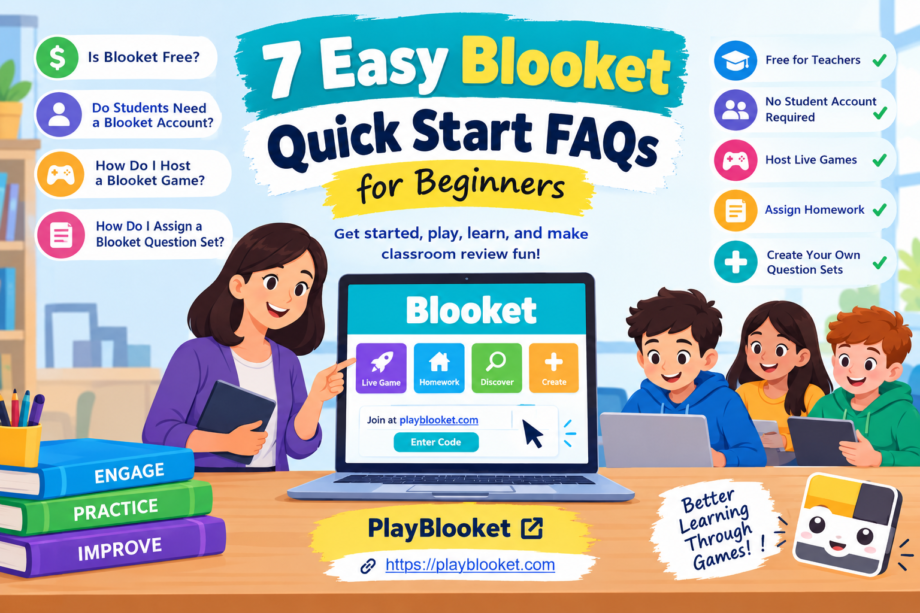
Getting started with an educational platform can feel confusing when you have never used it before. Teachers may wonder how to create a classroom activity, students may ask whether registration is necessary, and parents may want to understand how online learning games work. A well-organized quick start guide can answer these questions without making the process complicated.
This quick start guide helps teachers and students understand Blooket’s main features and begin using the platform with confidence.
Blooket is an educational platform that combines question-and-answer activities with interactive game modes. Teachers can choose existing question sets, create their own questions, host live games, or assign activities for students to complete independently. Students can participate in many classroom games without creating personal accounts.
This FAQ explains the essential features of Blooket in straightforward language. Whether you are a teacher preparing your first classroom session, a student joining a game, or a parent learning about educational technology, you will find practical answers below.
What Is Blooket and How Does It Work?
Blooket is an online learning platform designed to make reviewing educational material more engaging. Instead of answering questions on a traditional worksheet, students respond to questions while participating in a game. Depending on the selected mode, their answers may help them earn rewards, progress through challenges, or compete with classmates.
The platform uses question sets as the foundation of its activities. A question set contains questions and their corresponding answers, usually organized around a subject or learning objective. Teachers can find public sets created by other users or prepare original material for their own classes.
For example, a science teacher might select a set about the solar system, while an English teacher could prepare questions about grammar, vocabulary, or reading comprehension. Once a suitable set is available, the teacher can select an appropriate game mode and invite students to participate.
The main advantage of this approach is flexibility. Teachers can use the same material for classroom review, practice activities, or independent assignments. Students can encounter familiar information in a different format, which may help maintain their interest during a lesson.
A quick start approach is especially helpful when time is limited. Rather than exploring every feature immediately, new users can begin by choosing a question set, learning the basic controls, and completing one short activity. Additional features can be explored after the first session.
FAQ 1: Is Blooket Free?
Yes. Blooket offers a free Starter account that includes essential features for educational activities. Teachers can discover question sets, create their own material, and host games without purchasing a subscription.
The free option makes Blooket accessible to individual educators, families, and classrooms that want to explore interactive learning before considering paid features. You can visit the official website at playblooket.co to review the available options and create an account.
What Can You Do With a Free Account?
The Starter plan supports several useful activities:
- Browse available question sets in the Discover section.
- Create original question sets for classroom lessons.
- Host live educational games using supported game modes.
- Invite students to participate through a game code, QR code, or join link.
- Assign supported homework activities within the plan’s limits.
- Review the reports and results available to Starter users.
These features are enough for many teachers who want to introduce game-based learning into their regular teaching routine.
For a practical quick start, it is usually unnecessary to purchase a subscription before testing the platform. Begin with a short question set and determine whether the available features meet your classroom requirements.
What Does Blooket Plus Offer?
Blooket Plus is an optional paid upgrade that provides additional capabilities. Depending on the subscription and current feature availability, these may include larger live games, enhanced reporting, longer homework deadlines, additional game modes, and tools for organizing or managing question sets.
According to Blooket’s official feature information, Starter users can host games with up to 60 players, while Plus supports larger games of up to 300 players, subject to mode-specific restrictions. Starter homework deadlines extend up to 14 days, while Plus users can assign homework up to 365 days in advance.
Teachers should review the current subscription details before purchasing because features and limits may change.
Which option should you choose?
If you teach a small class and mainly need question sets, live games, and ordinary homework assignments, the free plan may be sufficient. If you regularly teach larger groups or require advanced reporting, comparing the paid features may be worthwhile.
Official reference: Blooket Plus Features.
FAQ 2: Do Students Need a Blooket Account to Play?
No. Students do not need their own Blooket accounts to join a teacher-hosted live game. The teacher needs an account to prepare and host the activity, while students can participate using the joining information provided by their teacher.
This makes the classroom quick start process easier because students do not have to complete individual registrations before a lesson can begin.
How Students Join a Live Game
The joining process is simple:
- The teacher opens Blooket and prepares a game.
- Blooket provides a Game ID, QR code, or join link.
- Students visit the joining page, scan the code, or open the shared link.
- They enter the requested nickname or use an available randomly generated name.
- They wait in the game lobby until the teacher starts the activity.
Students should follow the instructions displayed on their screens. The precise experience may vary depending on the activity and the teacher’s settings.
For instance, a teacher conducting a vocabulary review can display the game code on a classroom projector. Students can then join using their laptops, tablets, or other supported devices.
Why Would a Student Create an Account?
Although registration is not required for joining ordinary live games, a student account can provide additional benefits. Registered students can access features such as collecting Blooks, tracking personal statistics, and playing supported solo activities.
Students should follow the platform’s age requirements and applicable school or parental guidance before registering. Blooket’s student guidance states that account creation requires users to be above 13 in the United States or at least 16 outside the United States, subject to the platform’s applicable requirements.
Teachers should also consider student privacy when choosing nicknames and configuring classroom activities.
A useful quick start tip is to test the joining process before the lesson begins. This helps teachers identify problems with internet access, browser compatibility, or incorrect game codes before the entire class is waiting.
Official reference: Do Students Need a Blooket Account to Play?.
FAQ 3: How Do I Host a Blooket Game?
Hosting a Blooket game involves choosing a question set, selecting a game mode, configuring the available settings, and inviting students. You do not need to build an entirely new activity every time because public question sets can often be reused.
The following quick start instructions explain the basic hosting process.
Step 1: Sign In to Your Teacher Account
Visit playblooket.co and sign in to your account. If you are new to the platform, follow the registration instructions to create an account.
After signing in, familiarize yourself with the main dashboard. The My Sets, Discover, and Create areas are particularly useful when preparing a classroom activity.
Step 2: Choose a Question Set
You have several options for finding suitable questions.
My Sets: Use this area to locate question sets you have already created or saved.
Discover: Browse public question sets created by other users. Search by subject, topic, grade level, or relevant keywords to narrow your results.
Create: Build a new question set when you need material that closely matches your lesson objectives.
Before hosting a public set, review its questions and answers. Check for spelling mistakes, outdated information, confusing wording, and answers that may not match the material you are teaching.
Step 3: Select a Game Mode
Open the question set you want to use and choose the Host option. Select one of the available live game modes.
Different modes offer different experiences. Some emphasize answering questions correctly, while others incorporate competition, resource management, or progression through challenges.
For your first session, choose a mode whose instructions are easy to explain. The goal is to help students understand the material rather than spend most of the lesson learning unfamiliar controls.
Step 4: Configure the Game
Review the available hosting settings before generating the game session. Depending on the selected mode, you may be able to adjust time limits, goals, joining options, or nickname settings.
Choose settings that match the age group and purpose of the activity. A short review game may need fewer questions and a shorter time limit than a revision session before an examination.
Step 5: Share the Game ID
When the game is ready, use the available hosting option to generate the session. Share the Game ID, QR code, or join link with students.
Display the information clearly so everyone can join without confusion. For remote classes, sharing the join link through an appropriate school communication channel may be more convenient.
Step 6: Start Playing
Once students have entered the lobby, check that the expected participants are present and select Start.
Explain the basic rules before the first question appears. Students should know how to answer, what the objective is, and whether speed, accuracy, or another game mechanic affects their progress.
Step 7: Review the Results
After the activity, examine the available results and identify topics that students found difficult. If several students missed the same question, revisit the concept during the next lesson.
This completes a practical quick start routine: prepare the material, host the activity, guide students through the game, and use the results to plan what comes next.
Official reference: How to Host a Blooket Game.
FAQ 4: How Do I Assign a Blooket Question Set as Homework?
Blooket also supports independent activities that students can complete outside a live classroom session. Teachers can use supported question sets to assign homework, allowing students to practice material at a convenient time before the assignment deadline.
This quick start method is useful when students need additional practice after a lesson or when a teacher wants to reinforce previously covered material.
Step 1: Select a Question Set
Sign in to your teacher account and locate a suitable question set.
You can select a set from My Sets, find a public set in Discover, or create new questions through the Create section.
Choose questions that align with the homework objective. For example, after teaching fractions, a mathematics teacher could assign practice questions about equivalent fractions, comparing values, or solving basic fraction problems.
Step 2: Open the Homework Options
Open the selected set and locate the homework assignment option. Depending on the interface, the workflow may include choosing Host and then selecting Assign HW.
Not every game mode supports homework, so select an available mode that meets your requirements.
Step 3: Set the Due Date
Choose the date and time by which students should finish the assignment.
Starter accounts can schedule homework up to 14 days into the future, while Plus accounts support deadlines up to 365 days ahead, according to Blooket’s published guidance.
Choose a realistic deadline that gives students enough time to complete the work without conflicting with other assignments.
Step 4: Review the Additional Settings
Check the available options before publishing the assignment. Settings may vary according to the game mode and account plan.
Consider the assignment’s learning objective, the time students will need, and whether the chosen questions provide an appropriate level of difficulty.
Step 5: Assign the Homework
Select Assign Now when the information is correct. Blooket will create the assignment and provide a homework link.
Copy the link and distribute it through your usual classroom communication system. You can share it through a learning management system, an approved class group, or another suitable channel.
Step 6: Explain the Instructions
Students should know what to complete, when the assignment is due, and how to access the activity.
They can open the homework link, enter the requested information, and follow the on-screen instructions. Students generally do not need accounts simply to complete these guest-access homework activities.
Step 7: Review Homework Results
When students have completed the assignment, review the results available to your account. Use the information to identify misunderstandings and decide whether another explanation or practice session is needed.
A useful quick start habit is to assign a short activity first. This allows teachers to check that the link works and that students understand the instructions before introducing longer assignments.
Official reference: How to Assign a Blooket Question Set as Homework.
FAQ 5: How Do I Create My Own Blooket Question Set?
Creating an original question set gives teachers more control over the material students practice. It is particularly useful when a lesson follows a specific textbook, curriculum, or classroom objective that may not be covered by an existing public set.
For a quick start, begin with a small collection of clear questions instead of trying to prepare an entire semester’s material at once.
Step 1: Open the Create Section
Sign in to Blooket and select Create. This opens the question set creation area.
Enter a descriptive title that identifies the subject, topic, and intended grade level when appropriate. Add a brief description to help other users understand the set’s purpose.
You may also have the option to add a cover image and select whether the set is public or private.
Step 2: Add Questions and Answers
Select Add Question and enter your question along with the available answer choices.
Mark the correct answer carefully. For a True/False question, the official instructions explain that you can use True and False as the first two answers and leave additional answer fields empty.
Write questions that test understanding rather than relying entirely on memorization. For example, instead of asking students only to define a scientific term, you might ask them to identify a real-world example of the concept.
Step 3: Check Accuracy and Clarity
Review every question before saving it. Correct spelling errors, remove ambiguous wording, and confirm that the marked answers are accurate.
Try to keep questions concise enough for students to read comfortably during a game. If a concept requires a longer explanation, introduce it during the lesson and use the question set to reinforce the essential points.
Step 4: Save and Review the Set
Save each question after entering its content, then continue until the set is complete. Review the finished set before using it with students.
You can organize your questions by difficulty, topic, or lesson objective to make future revision easier.
Step 5: Choose the Appropriate Visibility
Public sets can be discovered by other users and shared through a link. Private sets remain visible only to you, although you can still use them to host live games.
Consider your intended audience before selecting the visibility option. Teachers who want to share original educational material may prefer public access, while those preparing a restricted classroom activity may prefer a private set.
An effective quick start strategy is to create 10 to 15 well-written questions, test them in a short session, and improve the set using student feedback.
Official reference: How to Create a Blooket Question Set.
FAQ 6: What Should I Do If Blooket Is Not Working?
Technical problems can interrupt a classroom activity, especially when several students are trying to join at the same time. Fortunately, many common issues can be investigated with a few basic checks.
If you are following a quick start guide and something does not work as expected, identify the specific problem before changing multiple settings.
Problem 1: The Game Code Does Not Work
Check that the code has been entered correctly and that the teacher has created an active game session. Game codes are associated with particular sessions, so an old code may no longer work.
Ask the teacher to display the current code again or share the correct join link.
Problem 2: Students Cannot Join
Confirm that students are visiting the appropriate joining page and that their internet connections are working.
If the problem affects several devices, investigate whether the school’s network or firewall is blocking required website resources. A teacher may need help from the school’s technical support team.
Problem 3: Questions or Images Do Not Load
Refresh the page and check the internet connection. If the issue continues, try a supported, updated browser or another permitted device.
School-managed devices may have restrictions that interfere with website functionality. Teachers should contact their administrator rather than attempting to bypass school security controls.
Problem 4: A Teacher Cannot Find a Question Set
Check whether the set is saved under My Sets or available through Discover. If the set belongs to another user, confirm that it is public and that the search terms are relevant.
You can also create an original set if the available material does not meet your needs.
Problem 5: Homework Is Unavailable
Check the assignment link, selected game mode, due date, and account settings. An expired assignment may no longer be accessible to students.
Teachers should confirm that the assignment was successfully published and that the link being shared is the correct one.
The best approach is to test the platform before the class begins. A brief quick start check can prevent small technical problems from becoming major interruptions.
FAQ 7: How Can Teachers Make Blooket More Effective for Learning?
Blooket can make revision more engaging, but the educational value depends on how teachers use it. A game should reinforce a clear learning objective rather than replace every other teaching method.
Match the Question Set to the Lesson
Choose questions that reflect the concepts students have already studied or are currently learning. If the questions are unrelated to the lesson, the activity may be entertaining without providing much educational value.
A focused question set makes it easier to connect the game with classroom discussion and future assessments.
Keep Instructions Simple
Explain the purpose of the activity and demonstrate how to join before starting. Younger students or first-time users may need additional guidance with entering a game code, choosing a nickname, or understanding the selected mode.
Once students understand the basic process, future sessions usually require less explanation.
Balance Speed and Accuracy
Some students enjoy competition, while others prefer taking time to think through each answer. Avoid making speed the only measure of success.
Teachers can discuss incorrect answers after a round, encourage students to explain their reasoning, and use mistakes as opportunities to revisit difficult concepts.
Use Results to Guide Future Lessons
Review the information available after a game and identify recurring mistakes. If many students struggle with the same concept, consider providing another explanation or assigning targeted practice.
A quick start activity can become more valuable when its results influence what the teacher does next.
Choose Appropriate Activities for Different Ages
Younger learners may benefit from shorter sessions and simple questions. Older students may be ready for more complex material, longer activities, or questions that require applying knowledge rather than recalling facts.
Adapt the activity to the needs of the class instead of choosing a game mode solely because it is popular.
Encourage Healthy Participation
Explain that the purpose is learning, not embarrassing classmates or winning at any cost. Use suitable nicknames, follow school policies, and avoid sharing unnecessary personal information.
Teachers should also consider whether students have equal access to devices and reliable internet connections. If technology is unavailable to some students, an alternative activity can help keep the lesson inclusive.
A Practical First-Day Checklist
If you are preparing your first Blooket session, use this checklist to stay organized.
- Create or sign in to your teacher account.
- Choose an existing question set or prepare your own.
- Review the questions and verify the correct answers.
- Select a suitable live game mode.
- Check the available settings and player limits.
- Test the joining link or game code.
- Explain the rules and learning objective.
- Start the activity when students are ready.
- Review the available results after the game.
- Decide whether students need additional practice or homework.
Following this quick start checklist helps teachers prepare an activity without spending unnecessary time exploring every available feature.
Final Thoughts
Blooket provides teachers with a flexible way to combine question-based practice with interactive games. Its free Starter plan includes essential classroom features, and students can join teacher-hosted games without creating accounts. Teachers can also create original question sets, host live sessions, and assign supported homework activities.
The easiest way to begin is to select a short question set, choose a suitable game mode, and invite a small group of students to participate. After learning the basic process, teachers can experiment with additional settings and use available results to improve future lessons.
A successful quick start does not require mastering every feature on the first day. It requires understanding the essentials, preparing relevant questions, giving clear instructions, and making sure the activity supports the intended learning outcome.
With a little preparation, teachers and students can build a comfortable routine that makes classroom revision more interactive while keeping the focus on meaningful learning.
Frequently Asked Questions
Is Blooket free for teachers?
Yes. Blooket provides a free Starter plan with essential tools for discovering and creating question sets, hosting supported games, and assigning homework within the plan’s limits. Optional paid features are available through Blooket Plus.
Can students play Blooket without registering?
Yes. Students can join many teacher-hosted games through a Game ID, QR code, or join link without creating an account. Registration is optional for these activities, although accounts unlock additional features.
How do I host my first game?
Sign in, select a question set, choose Host, select a supported game mode, and configure the available settings. Generate the session, share the joining information, and select Start when students are ready.
How do I assign homework?
Open an appropriate question set, select the homework assignment option, choose a deadline, review the available settings, and select Assign Now. Copy the generated link and share it with students.
Can I create my own questions?
Yes. Open the Create section, add a title and description, enter questions and answers, mark the correct answers, and save the set. Review your work before using it in a lesson.
What is the easiest way to learn the platform?
Start with one short question set and one familiar game mode. Test the joining process, explain the instructions, and review the results after the activity. Explore additional features once you are comfortable with the basics.
