
Introduction
Learning becomes more enjoyable when students can participate instead of simply listening to a lesson. Interactive quizzes, classroom challenges, and educational competitions give learners a reason to pay attention and test what they know. This is one reason the blooket game experience has become popular among teachers, students, tutors, and families looking for a different way to practice academic subjects.
Blooket combines questions and answers with entertaining game modes. Instead of completing an ordinary worksheet, players answer questions while participating in activities that involve collecting rewards, racing against classmates, or protecting virtual structures. The questions support learning, while the game mechanics encourage students to stay involved.
Hosting a session is relatively simple once you understand the process. You need an account, a suitable question set, and a game mode that matches your lesson or activity. After setting everything up, you can share a Game ID, QR code, or joining link with participants.
This guide explains how to host a blooket game from beginning to end, how to choose useful questions, which settings deserve attention, and how to solve common problems. Whether you are preparing a classroom review or organizing a friendly learning competition, these steps can help you get started with confidence.A well-planned blooket game can turn an ordinary study session into an interactive learning experience where students practice important concepts while enjoying friendly competition.
What Is a Blooket Game?
A Blooket game is an interactive learning activity built around a question set. Players answer questions and participate in a selected game mode, making the learning process feel more like an activity than a traditional test.
The platform is useful for subjects such as mathematics, science, history, vocabulary, geography, and language learning. Teachers can use existing question sets or prepare their own material according to a lesson plan.
For example, a mathematics teacher might create questions about fractions and multiplication. A language teacher could prepare vocabulary exercises, while a science teacher might use questions about planets, ecosystems, or the human body.
The questions provide the educational foundation, but the selected mode determines how players interact with them. Some modes emphasize collecting rewards, while others involve competition, racing, or strategic decisions.
A blooket game can be used for several purposes:
- Reviewing material before an examination.
- Practicing recently introduced concepts.
- Introducing a topic through short questions.
- Encouraging participation during classroom activities.
- Helping students identify subjects that require additional practice.
- Making revision sessions more engaging.
The best results come when the questions support a clear learning objective rather than focusing entirely on winning.
What Do You Need Before Hosting?
Before launching your first session, prepare a few basic things. Doing this beforehand makes the process easier and reduces interruptions once participants begin joining.
1. A Blooket Account
Visit the official Blooket website at playblooket.co and sign in or create an account. Hosting requires an account, but students can join a live session without creating their own accounts.
Follow the registration instructions displayed on the official website. If you are creating an account for a child or student, review the applicable age requirements and school policies.
2. A Question Set
Every hosted session needs a question set. You can choose an existing set from the Discover section or create your own using the platform’s question editor.
Select material that matches your audience’s age, knowledge, and learning objectives. A set containing unfamiliar vocabulary may frustrate beginners, while extremely easy questions may not challenge advanced students.
3. A Device and Internet Connection
The host needs a device with a compatible web browser and a reliable internet connection. Students can generally participate using supported devices such as laptops, desktop computers, tablets, or smartphones.
For a classroom activity, a projector or shared display is helpful because everyone can see the joining information and follow instructions.
4. A Plan for Sharing Access
Decide how participants will join before you start. You might display a Game ID on a classroom screen, show the QR code, or distribute the joining link through an approved online classroom.
Having this plan ready helps everyone enter the lobby without wasting lesson time.
How to Host a Blooket Game Step by Step
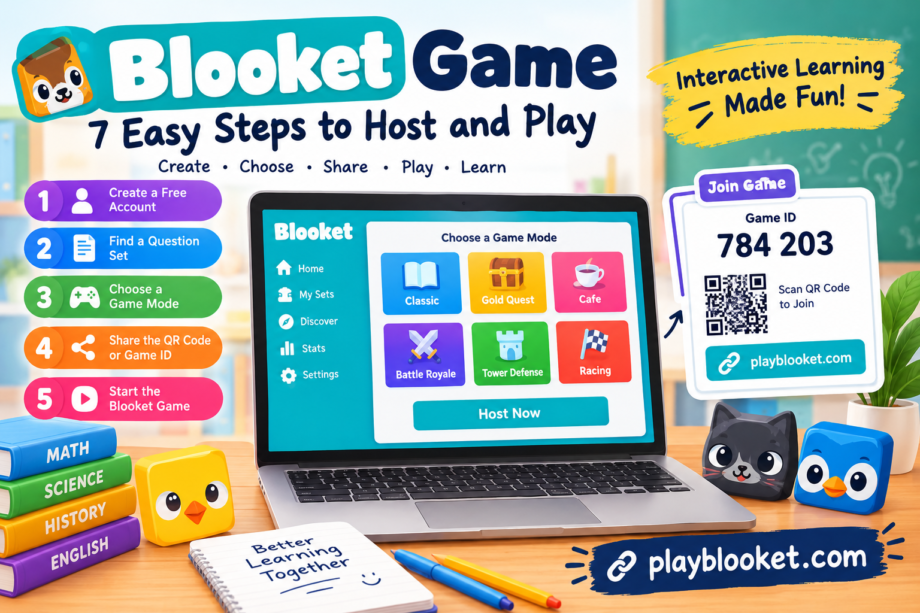
Each blooket game begins with a clear setup process, including selecting questions, choosing a mode, and preparing the joining details for players.The hosting process follows a straightforward sequence: choose your questions, select a mode, configure the available settings, and invite participants.
Before starting a blooket game, make sure your question set matches the lesson and your chosen mode is suitable for the participants.
Step 1: Open the Official Website
Start by visiting playblooket.co and signing in to your account.
After signing in, look through your dashboard. Depending on your needs, you can open a question set saved under My Sets, discover material created by other users, or build a new set.
If you are hosting for the first time, spend a moment exploring the available options. Familiarity with the dashboard makes future sessions quicker to organize.
Step 2: Find or Create a Question Set
Open Discover to search for questions related to your subject. Try specific search terms, such as multiplication practice, beginner Spanish vocabulary, or world geography.
Review a set before using it. Check whether the questions are appropriate, the answers are accurate, and the difficulty suits your participants.
If an existing set does not match your lesson, create a new one. Give it a descriptive title and add a short explanation of its purpose. Enter each question with its possible answers and mark the correct response.
You can also organize questions by grade level, chapter, topic, or skill. A well-organized set is easier to reuse when preparing another lesson.
Step 3: Open the Set and Select Host
Once you have chosen a suitable set, open its page. Look for the Host option and select it to begin preparing a live session.
Make sure you choose Host rather than Solo if you want other people to participate with you in real time.
This step takes you toward the mode-selection screen. The available choices may depend on the current platform features and account options.
Step 4: Choose a Game Mode
The next step is selecting a mode that fits your activity.
Different modes provide different styles of play. Classic offers a straightforward question-and-answer competition, while Gold Quest adds a treasure-collection element. Other live modes may involve racing, building, defending, or managing virtual resources.
Consider the purpose of your session before choosing.
For a short revision exercise, a simple mode may be the easiest choice. For a longer activity, a mode with additional decisions can make the experience more varied. Younger participants may benefit from a format with simple instructions, while older students may enjoy more strategic challenges.
The important point is that the game mechanics should support the lesson. A complicated mode is not necessarily better if it distracts students from the questions.
Step 5: Review the Hosting Settings
After choosing a mode, review the settings available on the screen. Depending on the mode, these may include a time limit, a target, nickname options, and whether late participants can join.
Set a reasonable duration for your activity. A short review may require only a few minutes, while a full-class session may need more time.
Consider how names will appear in the lobby. For a classroom, appropriate nicknames make it easier to identify participants and review results. Follow your school’s privacy policies when deciding whether students should use their names.
If the platform offers an option for late joining, decide whether it makes sense for your situation. Allowing late arrivals can be useful in a busy classroom, while a tightly organized competition may work better with a fixed starting group.
Check the instructions one last time before continuing.
Step 6: Click Host Now
When the settings look correct, select Host Now. The platform should open a waiting lobby and provide joining information for your session.
This is where the host prepares participants to enter the activity. Keep the lobby open while everyone connects.
If the expected joining details do not appear, check that you selected a supported live mode and completed the required setup steps.
Step 7: Share the Game ID or QR Code
Participants need the session’s joining information to enter. Blooket provides options such as a Game ID, QR code, and joining link.
There are three common ways to invite players.
Game ID: Display the code on a projector or shared screen. Participants visit playblooket.co and enter the code displayed by the host.
QR code: Show the QR code so participants with compatible devices can scan it using their camera or a supported scanning feature.
Joining link: Copy the available link and share it through an approved classroom platform, message, or online meeting.
Choose whichever method works best for your group. In a physical classroom, displaying the code may be convenient. For remote learning, a joining link can reduce the number of steps students need to follow.
Only share the session details with the intended participants.
Step 8: Wait for Participants to Join
Once the joining information is available, participants can enter the lobby. Depending on the session, they may be asked to provide a nickname or choose an available character.
Watch the lobby as names appear. Give everyone a moment to connect and explain what they should do once the activity begins.
If someone cannot join, ask them to verify the code and check their internet connection. Confirm that they are using the correct joining page and that the session is still active.
Avoid starting immediately if several participants are still trying to connect. A short pause can prevent unnecessary interruptions.
Step 9: Start the Game
When the group is ready, select Start from the host screen.
Players can now answer questions and interact with the selected mode. Your role is to monitor the activity, clarify instructions, and help participants who encounter technical difficulties.
During a classroom session, pay attention to whether students are understanding the questions. If the competition becomes too distracting, remind everyone that the purpose is to practice and learn.
After the session ends, review any available results and use them to identify concepts that may need further explanation.
How to Choose the Right Questions
Question quality has a major effect on the success of a session. Even an entertaining mode cannot compensate for confusing wording, incorrect answers, or material that is unrelated to the lesson.
Start with a clear objective. Decide whether you want students to memorize facts, practice calculations, recognize vocabulary, or apply a concept to a new situation.
Next, write questions in straightforward language. Avoid unnecessary details that make a simple question difficult to understand. If the activity is intended for beginners, introduce basic concepts before moving toward more challenging examples.
Use plausible answer choices. Incorrect options should help reveal misunderstandings rather than confuse students through careless wording.
For instance, a question about fractions could ask students to identify which fraction is equivalent to one-half. The incorrect answers can represent common mistakes, giving the teacher useful information about areas that require additional practice.
When preparing a blooket game, it is also helpful to mix question styles. A combination of definitions, calculations, examples, and practical applications can keep the set varied.
Before publishing or using a set, check every answer. Community-created material can save preparation time, but it should still be reviewed for accuracy.A balanced blooket game includes accurate questions, clear answer choices, and a difficulty level that encourages students to keep learning.
Tips for a Better Classroom Experience
A smooth session requires more than pressing the Host button. A few practical decisions can help students stay focused and make the activity more useful.
Explain the Rules Before Starting
Give participants a short explanation of how the selected mode works. Demonstrate how to join and explain what they should do when the first question appears.
Students who understand the rules can concentrate on the content rather than repeatedly asking for instructions.
Keep the Activity at a Suitable Length
A long session may cause students to lose focus, especially when the questions repeat the same skill. Choose a manageable amount of material and leave time to discuss difficult answers afterward.
The right duration depends on the subject, age group, and lesson objective.
Encourage Healthy Competition
Competition can motivate students, but the leaderboard should not become the only measure of success. Some students answer quickly, while others need additional time to understand the material.
Recognize improvement, careful thinking, and effort alongside high scores. This helps create an environment in which more participants feel comfortable taking part.
Review Mistakes Together
After a blooket game ends, revisit questions that many students answered incorrectly. Explain the correct reasoning and invite students to ask questions.
This step turns a fun activity into a more meaningful learning opportunity.
Prepare for Technical Issues
Before class, open the selected question set and check that your device can access the platform. If possible, test the display or internet connection in advance.
Keep the joining information visible and provide simple instructions for students who need help.
A little preparation can prevent small problems from interrupting the entire lesson.To make a blooket game more effective, encourage students to discuss their answers and learn from mistakes instead of focusing only on scores.
Common Hosting Problems and Their Solutions
Even a carefully prepared session can encounter technical issues. Most problems can be addressed with a few basic checks.
The Game Code Does Not Work
First, make sure participants have entered the current code exactly as displayed. A code from an earlier session may no longer work.
Ask them to return to the correct joining page and enter the active code again. If necessary, check the host screen and share the current joining details.
A Student Cannot Enter the Lobby
Check the student’s internet connection, browser, and device. Confirm that the session is still waiting for players or that late joining is available under the selected settings.
If the problem continues, try reloading the joining page and entering the current code again.
The Questions Are Too Difficult
If students struggle with most of the questions, the material may be too advanced or the wording may be unclear.
Pause when appropriate and explain the underlying concept. For the next session, adjust the difficulty and introduce prerequisite material first.
The Wrong Game Mode Was Selected
If you discover that the chosen mode does not fit your lesson, check whether the available controls allow you to change the setup. Otherwise, end the session and start another with the appropriate mode.
Previewing the mode before inviting everyone can help prevent this problem.
The Session Is Too Competitive
Some participants may focus on their rankings instead of understanding the material. Remind the group that mistakes are part of learning, and use the final discussion to explain difficult questions.
You can also choose a simpler format for future sessions if the additional game mechanics are distracting.
If a blooket game does not start correctly, check the session code, internet connection, and selected hosting settings before trying again.
Can Students Host Their Own Games?
Account requirements and permissions should be checked against Blooket’s current rules, but hosting generally requires an account, while students can join a live session without one.
Teachers, tutors, and other eligible account holders can prepare question sets and organize activities. Students who want to create and manage their own sessions should review the platform’s current account and age requirements before signing up.
For a school activity, teachers should also follow their institution’s technology and privacy policies.
Allowing students to create questions can be a useful learning exercise. For example, students can work in groups to prepare a short quiz about a chapter they have studied. Reviewing one another’s questions encourages them to think about accuracy, wording, and the difference between memorizing a fact and understanding a concept.
Frequently Asked Questions
1. Is a Blooket game free to host?
Blooket offers free account options, and essential hosting features are available without a paid subscription. Some features may depend on the account plan, so check the official website for current details.
2. Do players need accounts to join?
Students can join a live session using the Game ID, QR code, or joining link without creating an account. The host needs an account to set up the session.
3. Can I use my own questions?
Yes. You can create a question set and add your own questions and answers. This makes it easier to align the activity with your curriculum or revision goals.
4. How do students join a live session?
Students visit the official joining page, enter the active Game ID, or use the QR code or link provided by the host. They then follow the instructions displayed on their devices.
5. Which game mode should beginners choose?
Classic can be a straightforward starting point because it focuses on answering questions. Gold Quest is another option for groups that enjoy an additional reward-based element. The best choice depends on the age group and learning objective.
6. Can I host a game for remote students?
Yes. You can share the available joining link through an approved online classroom or communication platform. Make sure students can access the link and have a stable internet connection.
7. What should I do after the session ends?
Review the available results, identify common mistakes, and revisit the questions that caused difficulty. Use this information to plan the next lesson or revision activity.Whether you are teaching a new topic or reviewing an earlier lesson, a blooket game offers a flexible way to combine questions, participation, and friendly competition.
Conclusion
Hosting an educational quiz does not have to be complicated. Once you understand how to select questions, choose a mode, configure the settings, and invite participants, you can organize a session with relatively little preparation.
A successful blooket game begins with an appropriate question set and a clear purpose. The game mode adds variety, while the joining code, QR code, and link make it possible for participants to enter the session using different devices.
For teachers, the greatest benefit is the opportunity to combine practice with participation. Students can test their knowledge, recognize mistakes, and review challenging concepts in a more interactive setting.
Start with a short activity, check the questions carefully, and explain the rules before the competition begins. As you become more familiar with the available features, you can experiment with different modes and question styles.
Ultimately, the goal of a blooket game is not simply to produce a winner. It is to create an enjoyable learning experience in which students participate actively and leave with a better understanding of the subject.
