
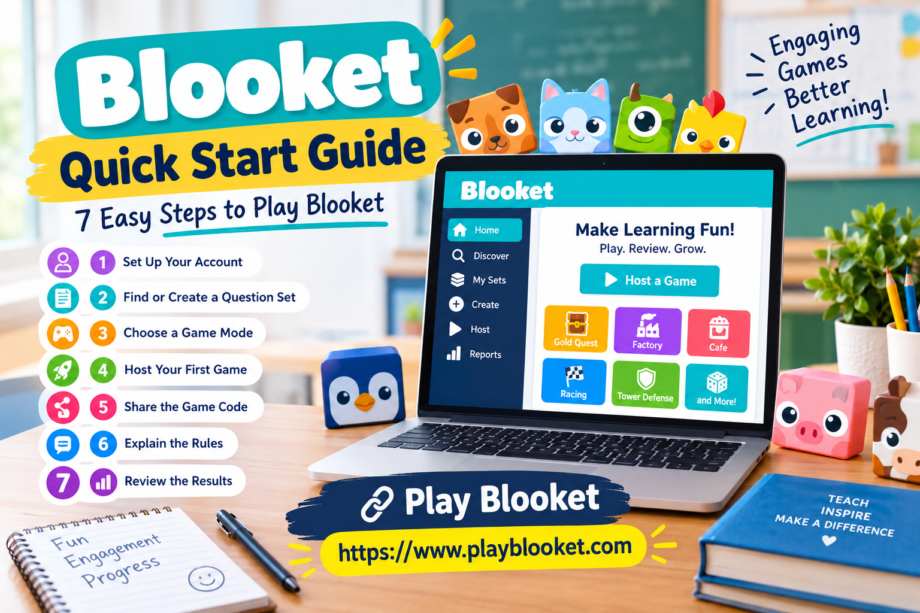
Getting a classroom activity started does not have to involve complicated software, long instructions, or a room full of confused students. With Blooket, teachers can turn review questions into an interactive game that encourages students to participate while practicing what they have learned. The platform combines educational question sets with different game experiences, making ordinary revision sessions feel more engaging.
This quick start guide explains how to prepare your first Blooket game, choose suitable questions, invite students, and manage the session from beginning to end. Whether you are a teacher exploring the platform for the first time or an educator looking for a faster way to organize classroom reviews, the steps below will help you get started.
You do not need to be an experienced technology user to understand the basics. A little preparation, a suitable question set, and a clear explanation for students are enough to make your first session easier to manage.
What Is Blooket and How Does It Work?
Blooket is a game-based learning platform that allows educators to use questions and answers in interactive activities. Instead of reviewing a worksheet in the usual way, students answer questions while participating in a game mode. The experience can make practice sessions more lively and give teachers another way to reinforce classroom material.
The platform revolves around question sets. A set contains questions, possible answers, and the correct responses. Teachers can select an existing set or create one that matches a lesson, subject, or learning objective.
Once the questions are ready, the teacher chooses an available game mode and hosts a session. Students join using the game information provided by the host and play on their own devices, subject to the requirements of the selected mode.
This quick start guide focuses on the basic process rather than every advanced feature. Learning how to select questions, start a session, and explain the rules gives you a useful foundation before exploring additional options
A quick start guide helps new users understand the basic features of Blooket before they begin hosting their first classroom game..
A well-structured quick start guide gives beginners a clear path to understanding the platform.
1. Prepare Your Blooket Account
Before hosting a game, visit the official Blooket website and open the sign-up or login option. New users can follow the registration instructions, while existing users can sign in to their accounts.
Teachers should use an account that they are permitted to use under the platform’s current terms. If you are setting up Blooket for a school, follow any technology or account policies established by your institution.
After signing in, take a few minutes to explore the dashboard. You may find navigation options for discovering question sets, creating content, hosting games, and reviewing available account features. The exact layout can change as the platform is updated, so focus on the purpose of each section rather than memorizing every button.
A good quick start guide should make the first experience manageable. You do not need to explore every menu before running a game. Start with the features required for your immediate task, and return to the other options when you have more experience.
It is also helpful to decide how the activity will fit into your lesson. For example, you might use Blooket for a five-minute warm-up, a vocabulary review, a short science quiz, or a recap at the end of class.
Following this quick start guide makes account setup easier for teachers who are using the platform for the first time.
2. Find or Create a Question Set
The question set determines what students will practice during the game. Choosing suitable questions is therefore one of the most important preparation steps.
You can explore available sets to find questions related to your subject. Search using specific terms such as fractions, world history, biology, spelling, or vocabulary. Review the available content before using it with students because a set’s title alone does not guarantee that its questions match your lesson.
If an existing set does not meet your needs, consider creating your own. A custom set gives you greater control over the difficulty level, wording, answer choices, and topics covered.
For a first session, keep the question set relatively short. Around 10 to 15 well-written questions can be a practical starting point for a brief classroom review, although the ideal number depends on the lesson and the available time.
Use this quick start guide to check your content before moving forward:
- Confirm that every question is understandable.
- Check that the correct answer is marked accurately.
- Avoid answer choices that could confuse students unnecessarily.
- Match the difficulty to the students’ current knowledge.
- Remove questions that are unrelated to the lesson objective.
For younger learners, simple wording and familiar examples can help. Older students may benefit from questions that require comparisons, calculations, or explanations of important concepts.
With this quick start guide, teachers can select relevant questions and prepare a learning activity that matches their lesson goals.
3. Choose a Game Mode That Fits Your Lesson
After selecting a question set, explore the available hosting options and game modes. Different modes can create different experiences, so the best choice depends on what you want students to accomplish.
Some activities emphasize quick responses and competition, while others involve collecting resources, making decisions, or progressing through a game. Availability and hosting options may vary, so check the current choices displayed in your account.
For example, a fast-paced mode may work well for a vocabulary warm-up, while a mode involving more decisions might be suitable for a longer revision activity. If students are unfamiliar with Blooket, choose a mode with rules that are easy to explain.
This quick start guide recommends keeping the first session simple. Introducing a complicated game mode while students are still learning how to join can consume valuable teaching time.
Before launching the game, consider three questions:
- Does the mode support the learning objective?
- Can students understand the rules quickly?
- Will the activity fit within the time available?
If you are uncertain, try the mode yourself before using it with the whole class. A short test can help you identify confusing instructions or unexpected settings.
This quick start guide also helps beginners choose a suitable game mode without feeling overwhelmed by the available options.
4. Host Your First Blooket Game
Once your question set and game mode are ready, you can move to the hosting stage. Open the set you want to use and look for the available hosting option. Follow the on-screen instructions to select the appropriate mode and configure the session.
Depending on the mode and current platform options, you may be able to adjust settings related to participation, timing, or the overall experience. Review these settings before starting rather than making changes while students are waiting.
A few small decisions can make the activity run more smoothly. Decide whether students will work individually or participate in another supported arrangement. Explain whether the purpose is friendly competition, practice, or checking understanding.
When everything is ready, launch the session. Blooket will provide the joining information required for that particular game. Share it with your students using the method available in your classroom.
The purpose of this quick start guide is not to make you memorize every hosting option. Instead, learn the sequence: select a set, choose a mode, review the settings, launch the session, and help students join.
If an option appears different from what you expected, read the current instructions on the screen. Platform interfaces can change, and the controls shown in an updated account may not match older video tutorials.
Keep this quick start guide nearby whenever you need a reminder of the basic steps for hosting a new game.
5. Help Students Join With a Game Code
Students need the correct joining information to enter a hosted session. Depending on the current process, this may include a game code and instructions for accessing the joining page.
Display the code clearly on a classroom screen or share it through an approved communication channel. Ask students to enter it carefully and follow the prompts provided by Blooket.
Some students may need assistance with their device, browser, or internet connection. Allow a little time for everyone to connect before explaining the game rules.
A useful classroom routine is to ask students to check their displayed name before the game begins. Teachers should follow their school’s privacy policies and use appropriate naming practices, especially when working with younger students.
This quick start guide also recommends explaining what students should do if they cannot join. They can check the code, verify that they are using the correct joining page, and try again. If the problem continues, the teacher can confirm that the session is still active and that the displayed instructions are correct.
Do not assume that every student will connect immediately. Preparing a simple backup activity, such as answering the same review questions on paper, can help keep the class productive if a technical problem occurs.
Once students have joined, confirm that the group is ready before starting or continuing the session. A clear beginning reduces confusion and gives everyone a fair opportunity to participate.
Teachers can use the quick start guide to explain joining instructions and help students get ready before the activity begins.
6. Explain the Rules Before Playing
Students are more likely to participate confidently when they know what is expected of them. Before the game begins, explain the objective, how answers are submitted, and what students should do if they encounter a problem.
Keep the explanation brief. You might demonstrate one sample question, describe how the chosen mode works, and remind students to read each question carefully.
It is worth emphasizing that the goal is learning rather than simply finishing first. Competition can make a review activity exciting, but students should still focus on understanding the material and correcting mistakes.
Teachers can also establish a few basic expectations:
- Use respectful language when playing with classmates.
- Do not interfere with another student’s device or answers.
- Ask for help when the instructions are unclear.
- Treat incorrect answers as opportunities to learn.
- Follow the teacher’s directions throughout the session.
This quick start guide encourages teachers to adjust their explanations to the age and experience of their students. A class that has used Blooket before may need only a reminder, while first-time players may benefit from a short demonstration.
Consider how students will participate if they finish at different times or need additional support. Some may need help reading a question, while others may benefit from reviewing a difficult concept after the game.
A calm, well-explained introduction makes the activity more inclusive and helps students focus on the learning objective.
7. Review the Results After the Game
The activity should not end as soon as the game finishes. A brief review can help teachers identify concepts that students understand and topics that may need further explanation.
Depending on the game mode and the features available to your account, Blooket may provide session results or other information about participation and performance. Review the available information and use it alongside your own observations of the class.
Look for patterns rather than focusing only on the final ranking. If many students struggled with a particular question, the wording may have been confusing, the concept may require additional teaching, or the class may need another example.
You can use these observations to plan the next lesson. Revisit difficult questions, invite students to explain their reasoning, or prepare a short follow-up activity that reinforces the same concept.
A quick start guide becomes more valuable when it includes this final step because the purpose of educational technology is not merely to run a game. It is to help teachers make learning more effective.
You might end the session by asking students to identify one concept they understood well and one topic they would like to practice again. This simple reflection encourages them to think about their progress rather than viewing the activity only as a competition.
Practical Tips for a Better First Session
Your first Blooket activity does not need to be elaborate. A few sensible decisions can help you avoid common problems and keep the focus on learning.
Test the activity beforehand. If possible, open the question set and inspect the hosting options before class. Familiarity with the basic process can save time.
Use an appropriate number of questions. A short activity is easier to manage when you are learning the platform. Add more questions after you understand how the session fits into your schedule.
Check the content carefully. Review answers, spelling, and question difficulty. Incorrect answer keys can undermine an otherwise useful lesson.
Choose the mode with a purpose. Pick a format that supports the lesson rather than selecting one solely because it looks entertaining.
Keep joining instructions visible. Students can check the information independently instead of repeatedly asking the teacher for the code.
Have a backup plan. If the internet connection fails or a device stops working, a printed quiz or class discussion can keep the lesson moving.
Make participation comfortable. Avoid putting unnecessary pressure on students who need extra time. Explain that the activity is a learning opportunity and that mistakes are part of the process.
These suggestions can make your first experience smoother without requiring advanced technical knowledge.
Using a quick start guide alongside these practical tips can make future classroom sessions easier to organize.
Every quick start guide should encourage teachers to test their settings before inviting students.
Common Problems and How to Solve Them
Even a straightforward classroom activity can encounter small obstacles. Knowing how to respond makes the experience less stressful for both teachers and students.
Students Cannot Join the Session
First, confirm that the game is active and that students are entering the correct code. Check the displayed joining instructions and make sure everyone is following the current process.
If a student still cannot connect, check the device’s internet connection and browser. If the problem affects several students, investigate whether the issue is related to the classroom network or the hosted session.
The Question Set Is Not Suitable
If the questions are too easy, too difficult, or unrelated to the lesson, select a more appropriate set or create a custom one. Reviewing the content before class can prevent this problem.
Students Are Confused by the Game Mode
Pause to clarify the objective and demonstrate a basic action if the platform permits it. For a future session, choose a mode with simpler rules or provide a short introduction before students join.
The Activity Takes Too Long
Consider using fewer questions, simplifying the instructions, or choosing a mode that fits your available time. Leave room for a short discussion after the game so the learning objective is not lost.
This quick start guide can serve as a reference whenever you need to troubleshoot a first session. The important thing is to address the immediate problem calmly and return attention to the lesson.
Is Blooket Useful for Teachers and Students?
Blooket can provide an alternative to traditional review exercises by combining questions with interactive game mechanics. For teachers, it offers another way to organize practice and encourage classroom participation. For students, it can make reviewing familiar concepts feel different from completing a standard worksheet.
Its usefulness depends on how it is integrated into teaching. A game should support a clear learning objective rather than replace every other instructional method.
Teachers can use short sessions to introduce a topic, revisit material from a previous lesson, or check understanding before moving forward. Students may also benefit from repeated practice when the questions are accurate and appropriately challenging.
The platform is not a substitute for detailed instruction, individual feedback, or thoughtful assessment. Some subjects require explanations, written work, discussion, and practical activities that a quiz alone cannot provide.
A balanced approach combines interactive practice with opportunities to explain answers and correct misunderstandings. When used this way, Blooket can become one useful part of a broader classroom strategy.
Frequently Asked Questions
Is Blooket suitable for beginners?
Yes. Beginners can start by selecting an existing question set, choosing an available game mode, and following the hosting instructions. Learning the basic process first makes it easier to explore additional features later.
Do teachers need to create their own questions?
Not necessarily. Teachers can look for existing question sets and review them before use. Creating a custom set is helpful when a lesson requires specific questions, difficulty levels, or terminology.
How do students enter a hosted game?
Students follow the joining instructions provided by the host, which may include a game code. They should use the correct joining page and enter the information carefully.
Can Blooket be used for different subjects?
It can support practice across subjects such as mathematics, science, language arts, vocabulary, and history, provided the question content is appropriate for the lesson.
What should teachers do after a game finishes?
Review any available results, discuss challenging questions, and identify topics that need additional practice. A short follow-up discussion helps connect the game to the lesson.
Is this quick start guide enough to learn every feature?
This quick start guide covers the basic steps for preparing and hosting an initial activity. Advanced settings and specific features may require additional exploration of the current platform.
Conclusion
Starting with Blooket is easier when you approach the process one step at a time. Prepare your account, find or create a suitable question set, select an appropriate mode, host the game, and explain how students should join. Afterward, use the available results and classroom observations to decide what students should practice next.
The most effective first session is not necessarily the most complicated one. A short, well-planned activity with clear instructions can help you become comfortable with the platform while giving students a useful opportunity to review their learning.
This quick start guide provides a simple starting point for educators who want to make classroom revision more interactive and organized.
This quick start guide can help teachers build confidence as they explore Blooket’s classroom features.
Keep this quick start guide available as a reminder of the basic process, and build on your experience with each new session. Once the fundamentals become familiar, you can explore additional options and adapt Blooket activities to your teaching style, classroom needs, and learning goals.
