
Introduction
Finding new ways to make lessons exciting can be challenging for teachers. Students often respond better when learning includes interaction, friendly competition, and opportunities to test their knowledge. Digital learning platforms can help educators create this experience without completely changing their teaching methods. Blooket is one option that combines educational questions with engaging game formats, allowing teachers to turn ordinary review sessions into enjoyable classroom activities.
For educators who have never used the platform, getting started is easier when the main features are explained step by step. Teachers can create an account, explore question sets, choose a suitable game mode, and invite students to participate. The process does not require advanced technical knowledge, making it accessible to educators with different levels of digital experience.
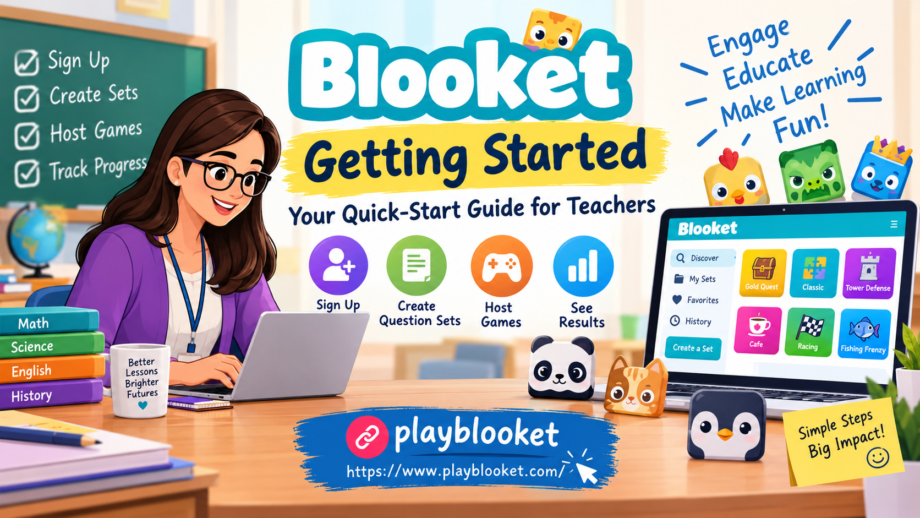
This quick-start guide explains how Blooket works, how teachers can register, and how to prepare a classroom game. It also covers question sets, student participation, useful teaching strategies, and common problems beginners may encounter. By the end, educators should have a practical understanding of getting started with Blooket and using it to support everyday classroom learning.
What Is Blooket?
Blooket is an online educational platform that allows teachers to present questions through interactive games. Instead of answering questions on a traditional worksheet alone, students respond to prompts while participating in a selected game mode. Depending on the activity, they may earn points, collect virtual items, or compete against classmates.
The platform can support several subjects, including mathematics, science, English, geography, history, and general knowledge. Teachers can prepare questions related to a recent lesson or use an existing question set to review previously taught material.
One reason educators explore Blooket is its flexibility. A teacher might use a short activity at the beginning of a lesson, organize a review session before an examination, or assign independent practice when appropriate. The format can be adapted to different learning objectives rather than being limited to one subject or age group.
For teachers getting started, the most important thing to understand is that the educational questions and the game experience work together. Students need to understand the content, while teachers need to select activities that encourage learning rather than focusing exclusively on winning.
Why Teachers Should Consider Blooket
Classroom engagement is not always easy to maintain. Students may lose interest during repetitive exercises, particularly when they have already practiced the same material several times. Interactive activities introduce variety and can give learners another reason to participate.
Blooket offers several potential advantages for educators.
1. Interactive Learning
Game-based questions encourage students to respond actively instead of simply watching a presentation. Students can test their understanding and receive opportunities to practice concepts covered in class.
2. Flexible Classroom Activities
Teachers can use question-based games for warm-ups, revision, individual practice, and group activities. This flexibility helps educators incorporate short digital exercises without redesigning an entire lesson.
3. Immediate Participation
When students answer questions during a live game, teachers can observe participation and identify topics that may need additional explanation. The activity can therefore provide useful feedback alongside entertainment.
4. Different Ways to Practice
Repeated practice helps students become more familiar with important information. Blooket can make that practice feel different from a standard worksheet, although teachers should still review whether students understand the answers.
For educators getting started, these benefits provide a useful reason to try one short activity before introducing the platform more widely.
How to Sign Up for Blooket
Creating an account is a sensible first step for teachers who want to organize their own educational activities. The exact appearance of the registration page may change as the platform updates its design.
Follow these steps to begin.
Step 1: Visit the Official Website
Open a web browser and visit the official Blooket website at https://playblooket.co
Check that you are using the correct website before entering personal information. If you are accessing the platform from a school computer, confirm that the website is permitted by your school’s technology policies.
Step 2: Find the Sign-Up Option
Look for the registration or sign-up option on the website. Select it to view the account creation choices available to you.
The available registration methods may change over time. Follow the instructions displayed on the official page rather than relying on screenshots from an older tutorial.
Step 3: Choose an Available Registration Method
Select a registration method that you can use and that complies with your school’s requirements. Enter the requested information carefully.
If you are using a school-managed account, check whether your institution has specific rules for educational websites and third-party services.
Step 4: Complete the Registration Process
Follow the on-screen instructions to finish creating your account. If the platform requests email verification, complete that step using the instructions provided.
Keep your login information secure. Teachers should avoid sharing account passwords with students or using the same credentials across unrelated services.
Step 5: Explore Your Teacher Dashboard
After signing in, explore the available dashboard options. Depending on the current interface and account features, you may find tools for discovering question sets, creating content, hosting games, or reviewing your activities.
This initial exploration makes getting started less confusing because you become familiar with the platform before introducing it to your students.
Understanding the Blooket Dashboard
The dashboard is where teachers can begin organizing their learning activities. Although the layout may change, several core tasks are useful to understand.
Discover Question Sets
A question-set discovery area helps users find activities that have already been created. Teachers can search for subjects, topics, or keywords relevant to their lessons.
For example, an elementary teacher might search for multiplication practice, while a history teacher could look for questions about ancient civilizations.
Before using an existing set, review its questions and answers. Check spelling, factual accuracy, age suitability, and alignment with the lesson. A publicly available set should not automatically be considered accurate or appropriate.
Create Your Own Questions
Creating a custom set gives teachers more control over the learning material. You can prepare questions that match the terminology, examples, and difficulty level used in your classroom.
This is especially helpful when students need practice with a particular concept or when the available public sets do not match the lesson.
Host a Game
Hosting allows teachers to organize a live activity when the selected game mode supports that feature. The host chooses the available settings and provides students with the joining instructions displayed by the platform.
For beginners getting started, it is helpful to explore these dashboard areas individually rather than trying every feature during the first session.
How to Create a Blooket Question Set
A well-designed question set is the foundation of a useful classroom game. Students may enjoy the activity, but the quality of the questions determines how effectively it supports the lesson.
Step 1: Select the Creation Tool
Sign in and look for the option to create a question set. Enter a clear title that explains the topic.
A descriptive title helps you recognize the activity later. For example, “Grade 6 Fractions Review” is more informative than “Practice Set 1.”
Step 2: Add Questions and Answers
Write questions that focus on the learning objectives you want students to practice. Add the correct answer and any other answer choices supported by the question editor.
Keep wording clear and age-appropriate. Avoid unnecessary complexity when the purpose is to test a specific skill.
Step 3: Mix Question Types When Appropriate
Multiple-choice questions are useful for checking recognition and understanding. Other supported formats may be suitable for testing different skills.
Use a mixture of straightforward and more challenging questions when it fits your lesson. However, do not make every question difficult simply to increase competition.
Step 4: Review the Entire Set
Check each question before using it in class. Confirm that the correct answer is marked, the wording is understandable, and the content is factually sound.
If you are adapting questions from another source, make sure you have permission to use the material when necessary.
Step 5: Save Your Work
Follow the platform’s instructions to save or finish the set. If the interface provides preview options, use them to check how the activity will appear.
Teachers getting started should begin with a short set of around 10 to 15 carefully prepared questions. A small activity is easier to review and adjust after the first classroom session.
How to Host Your First Blooket Game
Once a suitable question set is ready, the next step is organizing a game. A little preparation can prevent confusion and help students concentrate on the learning activity.
Step 1: Choose a Question Set
Open a set you created or one you have reviewed from the available collection. Make sure the questions match the topic students have studied.
Step 2: Select a Game Mode
Choose a game mode that is available for your selected set and appropriate for your classroom. Different modes can emphasize different styles of play, so review their instructions before selecting one.
Some activities may work better for quick revision, while others may suit a longer review session. Availability and settings can vary.
Step 3: Review the Game Settings
Check the available settings, including any time limits or participation options. Select settings that fit the students’ age, the lesson objective, and the time available.
Do not assume that the most competitive option is always the most educationally useful. Some classes benefit from a relaxed activity in which students can focus on understanding the material.
Step 4: Start Hosting
Start the activity using the instructions on the screen. The platform should display the joining information required for students to enter the game.
Explain the basic rules before everyone begins. Students should know what they need to do, how long the activity will last, and what behavior is expected.
Step 5: Monitor Participation
Watch for students who seem confused or who repeatedly struggle with particular questions. If appropriate, pause after the activity to explain difficult concepts and correct misunderstandings.
For teachers getting started, hosting a single game with a familiar topic is a practical way to learn how the process works.
How Students Join a Blooket Game
Teachers should explain the joining process before starting the activity, especially when students are unfamiliar with the platform.
First, the teacher hosts a game and shares the joining instructions displayed by Blooket. Students then use the official joining page or the method specified on the screen. They enter the required game code and follow the prompts to participate.
Depending on the activity and the platform’s current rules, students may need to enter a display name or complete additional steps.
Teachers should establish clear naming expectations. For example, students may be asked to use an approved classroom name rather than personal information. Follow school privacy policies and avoid collecting unnecessary student data.
If a student cannot join, check whether the code was entered correctly, whether the game is still accepting participants, and whether the student is using the correct joining page.
A simple explanation makes getting started smoother for the entire class. Teachers can also display the instructions on a classroom screen so students can follow them without repeatedly asking for help.
Choosing the Right Game Mode
Selecting a suitable game mode is an important teaching decision. The best option depends on the learning goal, available time, student preferences, and classroom environment.
Before selecting a mode, review its current instructions and settings. Consider whether it supports the type of participation you want and whether the rules are appropriate for your learners.
For a short review, choose an activity that can be completed within a few minutes. For a longer session, select an option that keeps students engaged without making the lesson unnecessarily complicated.
It is also worth considering classroom balance. Some students enjoy competition, while others may feel uncomfortable when performance is constantly compared. A supportive introduction, clear expectations, and an emphasis on improvement can make the activity more inclusive.
Teachers getting started do not need to master every available mode immediately. Begin with one option, observe the results, and experiment with other choices after becoming comfortable with the basic hosting process.
Practical Ways to Use Blooket in Lessons
Blooket can be incorporated into different stages of a lesson when the activity supports the intended learning outcome.
Warm-Up Activities
Begin a lesson with a few questions about previously covered material. This helps students recall important information and gives the teacher an opportunity to identify areas that may need revision.
End-of-Lesson Reviews
Use a short game at the end of a lesson to revisit its main ideas. Review the questions students found difficult and provide clarification before moving to a new topic.
Examination Preparation
Teachers can build question sets around important concepts that students need to practice before a test. Include questions that require understanding rather than relying entirely on memorization.
Vocabulary Development
Language teachers can use suitable question sets to practice word meanings, spelling, synonyms, and definitions. After the activity, ask students to use selected words in their own sentences.
Mathematics Practice
A mathematics review might include multiplication, fractions, percentages, or basic algebra. Keep calculations appropriate to the students’ level and discuss incorrect answers when necessary.
Group Revision
A classroom game can create a shared activity in which students revisit material together. Teachers should make sure that students who answer more slowly still have opportunities to learn and participate.
When getting started with these lesson ideas, choose one clear objective for each activity. That makes it easier to judge whether the game helped students learn.
Common Mistakes Teachers Should Avoid
Even a simple platform can become frustrating if teachers introduce too many features at once. Avoiding a few common mistakes can make the first experience more productive.
Using unreviewed questions: Public question sets may contain mistakes or outdated information. Check the answers before presenting them to students.
Choosing an unsuitable game: A mode that works well for one class may not suit another. Consider age, lesson objectives, class size, and student needs.
Giving unclear instructions: Students should understand how to join, how to answer, and what behavior is expected before the activity starts.
Focusing only on scores: Points and rankings can make games exciting, but they do not necessarily demonstrate deep understanding. Discuss the material after the activity.
Ignoring technical preparation: Test the website, internet connection, and classroom devices before the lesson when possible.
Making activities too long: A lengthy game can reduce its effectiveness if students become tired or distracted. Start with a manageable duration and adjust based on experience.
For educators getting started, avoiding these mistakes is often more useful than learning every advanced feature immediately.
Troubleshooting Common Blooket Problems
Technical problems can occasionally interrupt a classroom session. A simple checklist can help teachers identify the cause.
Students Cannot Join
Verify that the displayed game code is correct and that the activity is still open for participants. Ask students to check the joining instructions and enter the code again.
The Website Is Not Loading
Check the internet connection and try refreshing the page. If the problem continues, try another supported browser or check whether the school network restricts access to the website.
Questions Contain Errors
If you created the set, edit the incorrect question or answer before using it again. If you are using another person’s set, consider selecting a more reliable alternative.
Students Are Confused About the Rules
Explain the instructions before starting the next round. Demonstrating the process with one example can help students understand what to do.
The Activity Does Not Fit the Lesson
Choose a shorter set or a different available mode. Remember that the platform should support the learning objective rather than dictate the structure of the entire lesson.
Teachers getting started should also keep a backup activity ready, such as a short worksheet or verbal review, in case technical issues cannot be resolved quickly.
Tips for a Better Classroom Experience
A successful game-based lesson requires more than opening a website. Thoughtful planning helps teachers connect the activity to meaningful learning.
Start by explaining the purpose of the game. Students should know which skills or concepts they are practicing, not simply that they are competing for points.
Use questions that reflect what students have actually learned. If the set introduces too many unfamiliar concepts, students may struggle for reasons unrelated to the lesson objective.
Keep the first activity short. Afterward, ask students which questions were difficult and revisit any misunderstandings. This turns the game into a teaching opportunity rather than an isolated entertainment session.
Consider different participation needs. Offer clear instructions, check that students can access the activity, and avoid making public rankings the sole measure of success.
Finally, review the results alongside other evidence of learning. A correct answer during a game can be useful feedback, but students may still need written practice, discussion, or individual assessment to demonstrate lasting understanding.
These habits make getting started with Blooket more purposeful and help teachers decide when the platform is useful for their classes.
Frequently Asked Questions
1. Is Blooket suitable for beginners?
Yes. Teachers can begin with a simple question set and one available game mode. Learning the basic steps before exploring additional features makes the platform easier to manage.
2. Do teachers need an account?
An account is useful for creating and organizing question sets and accessing teacher features. The exact requirements can depend on the activity and the platform’s current policies, so consult the official website.
3. Can teachers create their own questions?
Yes. Blooket provides tools for creating question sets. Teachers can use these tools to prepare activities that match their subjects, grade levels, and lesson objectives.
4. Can Blooket be used for homework?
Teachers can explore available assignment options and settings to determine whether they suit a particular class. Confirm the current requirements and explain the instructions clearly before assigning independent work.
5. Is Blooket useful for exam revision?
It can be useful for reviewing key concepts and practicing questions. However, teachers should combine game-based activities with other revision methods to check students’ understanding more thoroughly.
6. What should teachers do during their first session?
Choose a familiar topic, prepare a short question set, test the joining process, and explain the rules. Afterward, review the questions that caused difficulty and adjust the next activity accordingly.
Conclusion
Blooket gives teachers another way to bring interactive practice into the classroom. With question sets, game modes, and live participation options, educators can create activities that encourage students to review material while remaining involved in the lesson.
The easiest approach is to begin with the basics: register through the official website, explore the dashboard, prepare a short set of accurate questions, and host a simple activity. Teachers can then evaluate the results and gradually experiment with additional features.
Ultimately, getting started is not about using every available tool at once. It is about choosing an activity that supports a clear educational goal, explaining the process to students, and using their responses to guide future teaching. With thoughtful preparation and regular practice, Blooket can become a useful addition to a teacher’s collection of classroom learning resources.
